Turn an old iPad into a family wall calendar
Put a spare iPad on the kitchen wall and everyone can see the day at a glance: who’s where, what’s next and what still needs doing. parte. keeps the screen on, and the wall display is free.
Free on iPhone and iPad. No card needed.
Four things, and you may own most of them
If you already have a spare iPad, the whole setup costs about £40.
Free, if it’s in a drawer
An iPad
It needs iPadOS 17 or later. A new iPad from Apple starts at £429; refurbished and second-hand ones cost much less.
View on Amazon →About £20
A wall mount
A screw-in mount holds the iPad firmly, and a rotating one lets you switch between portrait and landscape.
View on Amazon →About £10
A long cable
A 3-metre cable lets you hang the iPad where people look, not where the socket is. USB-C or Lightning, to match your iPad.
View on Amazon →As an Amazon Associate, parte. earns from qualifying purchases.
Which iPads work as a family calendar
parte. needs iPadOS 17 or later. To check yours, open Settings › General › About and look at the model name and the iPadOS version.
The iPads that can’t run iPadOS 17 are the 5th-generation iPad, the 9.7-inch iPad Pro and the first 12.9-inch iPad Pro. If yours is one of them, a refurbished iPad is the cheapest way in.
Runs iPadOS 17 or later
- iPad6th generation (2018) and later
- iPad mini5th generation (2019) and later
- iPad Air3rd generation (2019) and later
- iPad Pro 10.5-inch2017
- iPad Pro 11-inchevery model
- iPad Pro 12.9-inch2nd generation (2017) and later
- iPad Pro 13-inchevery model
From drawer to wall in five steps
-
0101
Install parte. on the iPad
Download parte. from the App Store and sign in. Create your family, or join one that already exists with its invite code.
-
0202
Bring in what you already have
Connect your Google or Outlook calendars in Settings. Then forward the next school email to parte., so the term dates are in from the first day.
-
0303
Open the wall display
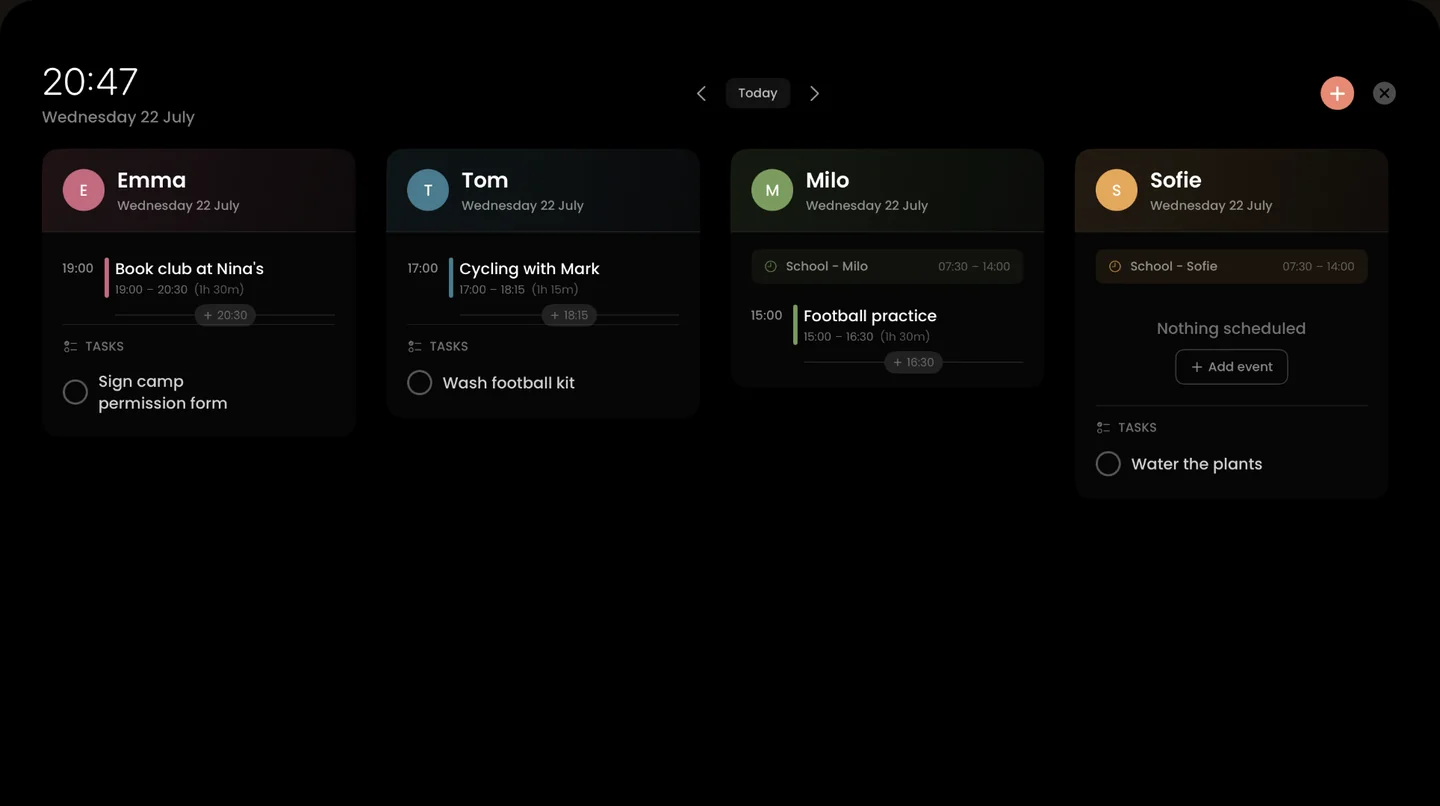
On the calendar, tap Schedule (the TV icon) at the top. The iPad switches to a full-screen view with a column for each person.
-
0404
Lock it to parte.
Turn on Guided Access in Settings › Accessibility › Guided Access. Open parte., then triple-click the top button (or the Home button). The iPad stays on parte. until you triple-click again and enter your code.
-
0505
Put it on the wall and plug it in
Pick the spot everyone walks past: the kitchen, the hallway, by the back door. Hang it low enough for the children to read. Run the cable along the skirting board or behind a cupboard.
Built to sit on a wall all day
The wall display is part of the free plan.
Stays on
While the wall display is open, the iPad doesn’t lock. You don’t need to change the Auto-Lock setting.
Dims when no one’s looking
After five minutes without a touch, the screen dims. Tap it to wake it up.
One column per person
Each person gets a column in their own colour, with their events and tasks for the day.
Add from the wall
Tap + to add an event without leaving the display. It shows up on everyone’s phone.
Tasks under the events
The day’s tasks sit under each person’s events: the permission slip, the football kit.
Today, tomorrow, next week
Use the arrows to look ahead, and Today to come back.
When an iPad is the better buy, and when it isn’t
Dedicated family screens such as Skylight start at £290 in the UK, and some of their features need a yearly plan on top. An iPad you already own costs nothing, and it’s still an iPad when you take it off the wall.
If you’d have to buy a new iPad just for this, a dedicated screen can be cheaper. We compare the costs side by side on our Skylight alternative page.
The honest answers
Does the iPad screen stay on all day?
Yes, while the wall display is open. parte. stops the iPad from locking, and dims the screen after five minutes without a touch. Tap it to wake it up.
Do I have to pay for the wall display?
No. The wall display, the shared calendar and 5 AI intakes a month are all on the free plan. See pricing for what costs money.
Will it work on my old iPad?
If it runs iPadOS 17 or later, yes. Check in Settings › General › About. The models that can’t are the 5th-generation iPad, the 9.7-inch iPad Pro and the first 12.9-inch iPad Pro.
Can everyone else see the calendar on their phones?
Yes. Family members can use parte. on iPhone or iPad, or open the dashboard in any web browser. Anything added on the wall shows up for everyone.
How do I stop the children changing things?
Turn on Guided Access (Settings › Accessibility › Guided Access). It keeps the iPad on parte. until someone triple-clicks the top or Home button and enters the code.
Give the old iPad a job.
parte. is free on iPhone and iPad. Set up your family in under two minutes.